En este documento
Clock in and out on the staff app
Staff record their hours on the staff app by clocking in when they start and out when they finish. Those punches flow straight to the Back Office, where they become the timesheets you review and approve. There's nothing to set up: anyone with a staff PIN can clock in.
Clock in and out from the PIN screen
Staff clock in and out on the PIN screen, the one they sign in from, on the staff app and on the kitchen display alike. They don't sign in to punch, so one tablet by the door can serve as the time clock for the whole team.
-
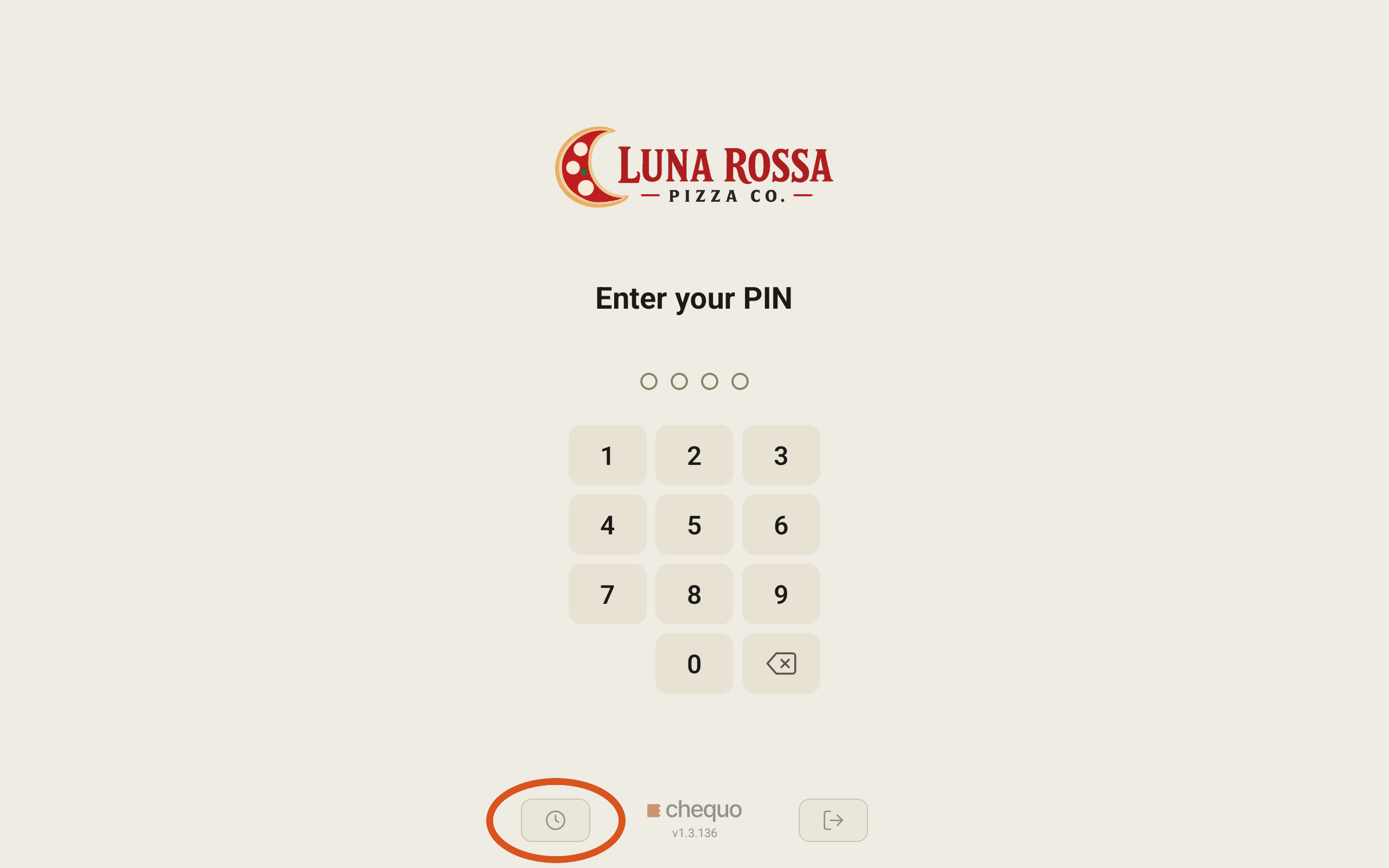
On the PIN screen, tap the clock button at the bottom left, beside the Chequo logo.
-
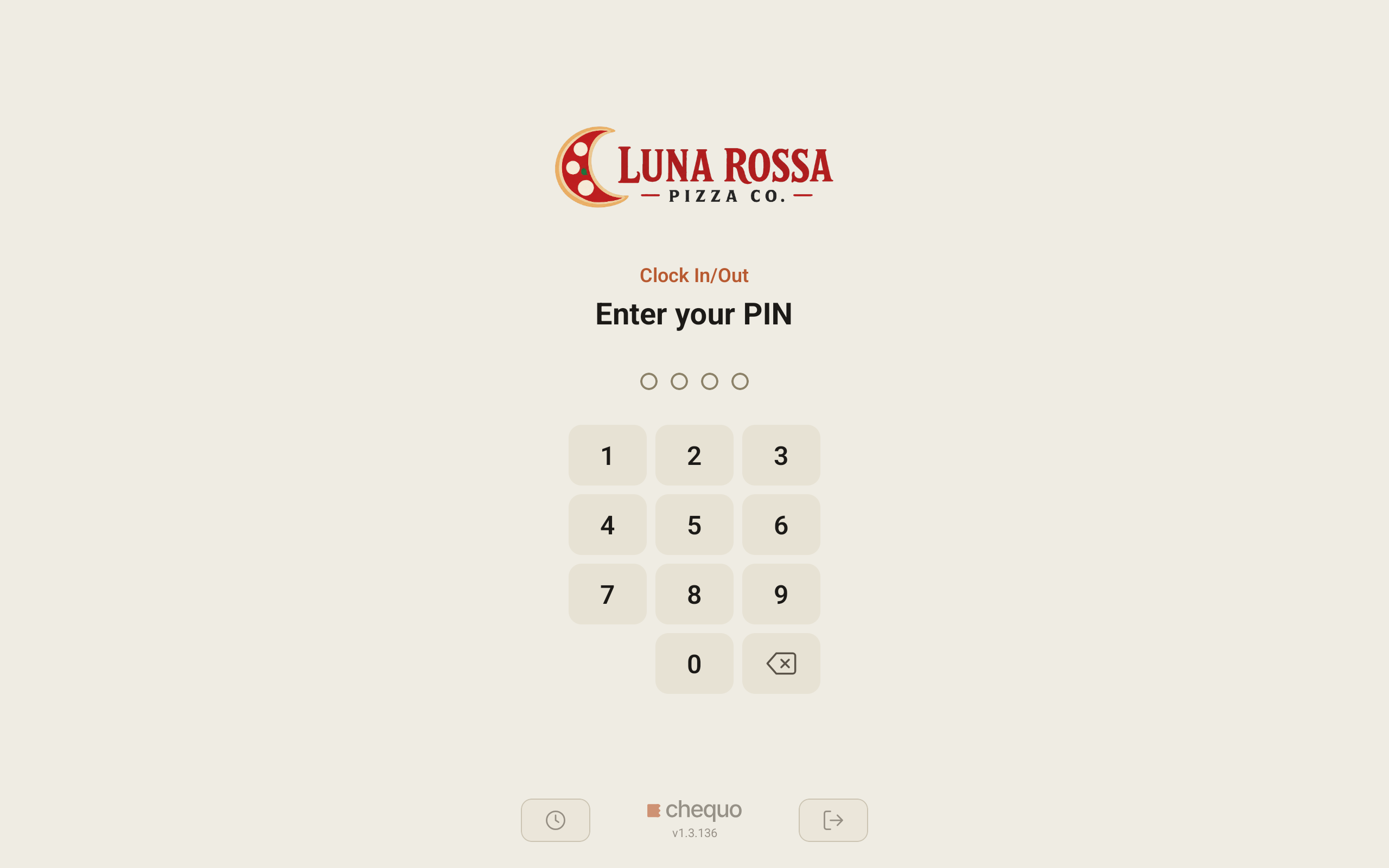
The screen switches to clock mode: Clock In/Out appears above Enter your PIN. Enter your PIN.
-
A menu opens with your name and where you are in your shift ("You're not clocked in.", "You're on the clock." or "You're on a break."). It only offers the actions that make sense right now:
- Clock in: start your shift.
- Start break and End break: step away and come back.
- Clock out: end your shift.
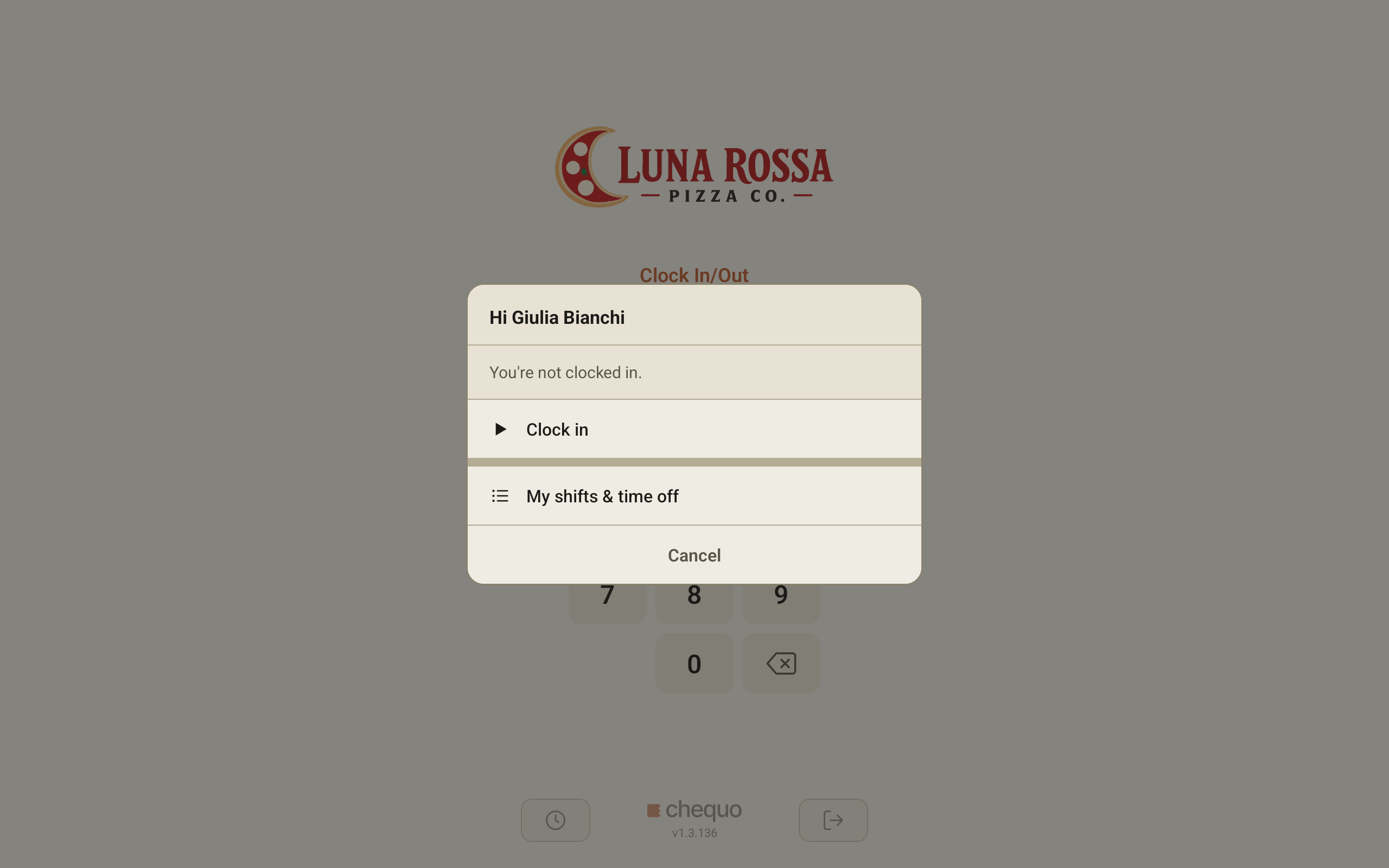
Tap the action you want. Once it's recorded the screen goes back to the PIN pad, ready for the next person. Tap Cancel to close the menu without recording anything.
The PIN screen is the only place to clock. There is no clock button once you're signed in.
The clock button appears only if your location has the Staffing add-on.
Breaks
Anyone on the clock can start and end a break the same way. A break pauses your worked time: unpaid break time is taken out of the hours on your timesheet. You can only be on one break at a time, and clocking out automatically ends a break you forgot to close.
Your shifts and time off
The same menu also has My shifts & time off, which opens the staff member's own schedule. There they can:
- See their upcoming shifts (times, role and planned break) once you've published the schedule.
- Pick up open shifts you've left unassigned, by tapping Claim.
- Offer to swap a shift with a colleague.
- Request time off and see whether past requests were approved.
Claims, swaps and time-off requests come to you in the Back Office for approval.
Because the tablet is shared, the schedule closes by itself and returns to the PIN screen after 30 seconds without a touch, so the next person can't open it.
Good to know
- Clocking in isn't tied to a shift. Staff can clock in whenever they start work, scheduled or not. Chequo compares planned against actual for you on the schedule's Actual view.
- No position is chosen at clock-in. The punch just records that the person was working.
- Hours are managed in the Back Office. The app doesn't show running weekly totals; you review, correct and approve hours on the Timesheets page.