In questo documento
Manage time off
Time off (under Team → Time off) is where you handle holiday, sick leave and every other kind of absence — approving what staff request, and recording absences yourself. Approved time off shows up on the schedule so you don't roster someone who's away.
The requests page
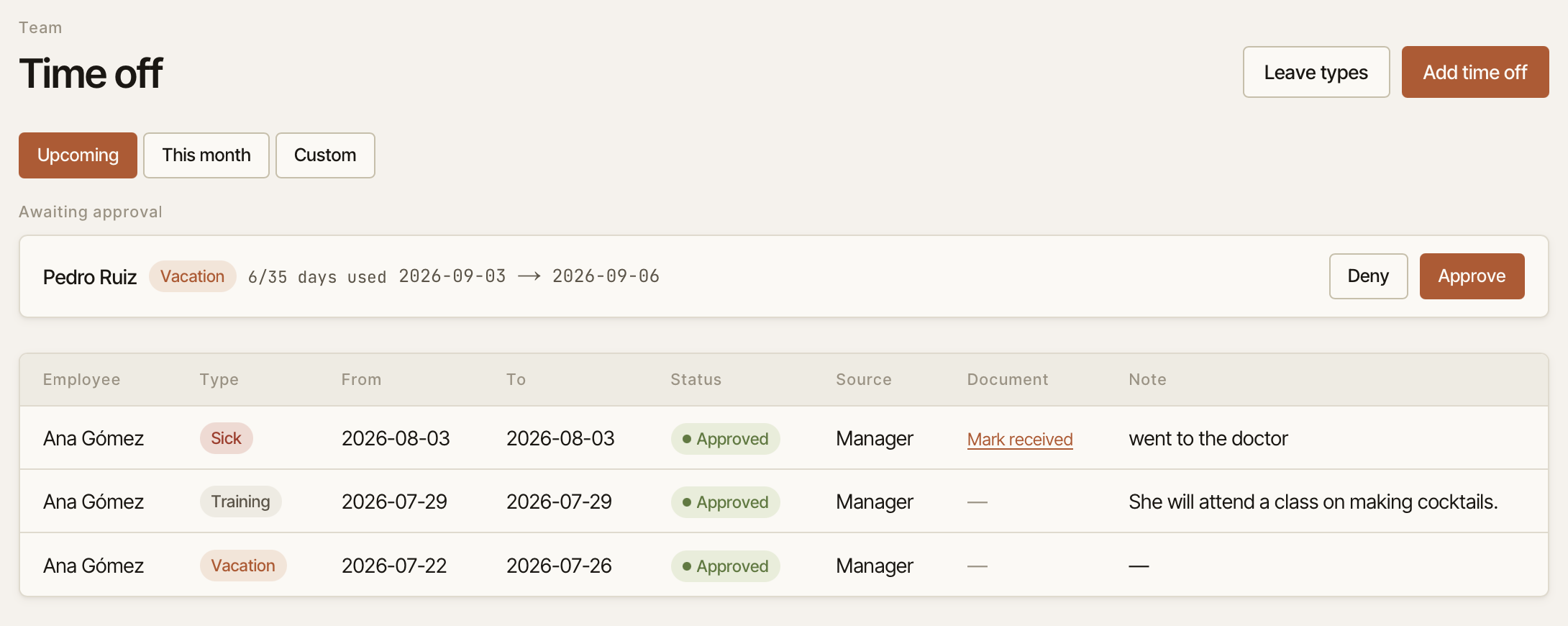
The page shows time off for a date range — Upcoming (the default), This month, or a Custom range — split into two parts:
- Awaiting approval — requests that need your decision. Each card shows the person, the type of leave, the dates, and any note. If the leave counts against someone's holiday allowance, you'll see a usage chip like "3/25 days used". Press Approve or Deny.
- History — a table of decided time off (approved, denied or cancelled), showing whether each was Requested by the staff member or entered by a Manager.
Some leave types need a supporting document (a sick note, for example). Those show a Document required badge, and you can mark it Document received once you have it.
Record time off yourself
To enter an absence directly — say you agreed a day off in person — press Add time off, choose the Employee, the Type, the First day and Last day, and an optional Note. Anything you add this way is approved immediately.
You can also record a single day's absence straight from the schedule grid: open a cell, switch to the Time off tab, pick a reason, and save.
Types of leave
Press Leave types to see the full list and how each one behaves. There are types for the situations a restaurant runs into — a few of the common ones:
- Annual leave — paid holiday. This is the only type that draws down someone's vacation allowance.
- Sick leave and Maternity / paternity leave — paid via social security and approved automatically; a document is expected.
- Personal leave, Bereavement, and other family-related leave — paid, and most need your approval (and often a document).
- Unpaid leave and Day off — time away that isn't paid.
- Training and Business trip — counted as worked time, so they don't clash with a shift on the same day.
Each type carries its own rules — whether it's paid, whether it needs approval, whether it needs a document, and whether staff can request it themselves — so you don't have to remember them. Pick the right type and Chequo applies the right behaviour.
Holiday allowance
Set a person's yearly holiday allowance in Annual vacation days on their Employment card. As you approve Annual leave, Chequo counts the days used against that allowance and shows the balance (for example "3/25 days used") on their requests, so you always know how much holiday is left.
What staff see
Staff request their own time off from the staff app under My shifts → Requests → Request time off: they pick a type, the first and last day, and an optional note, then Send request. It arrives in your Awaiting approval queue (unless it's a type that approves automatically, like sick leave). They can cancel a request while it's still pending, and they can see whether each one was approved or denied.