In questo documento
Review and approve timesheets
Timesheets (under Team → Timesheets) is where the hours your staff actually worked come together, so you can check them, fix mistakes, approve them, and export them for payroll.
The hours come from your team clocking in and out on the staff app. Every clock-in/clock-out pair becomes one line here.
Reading the timesheet
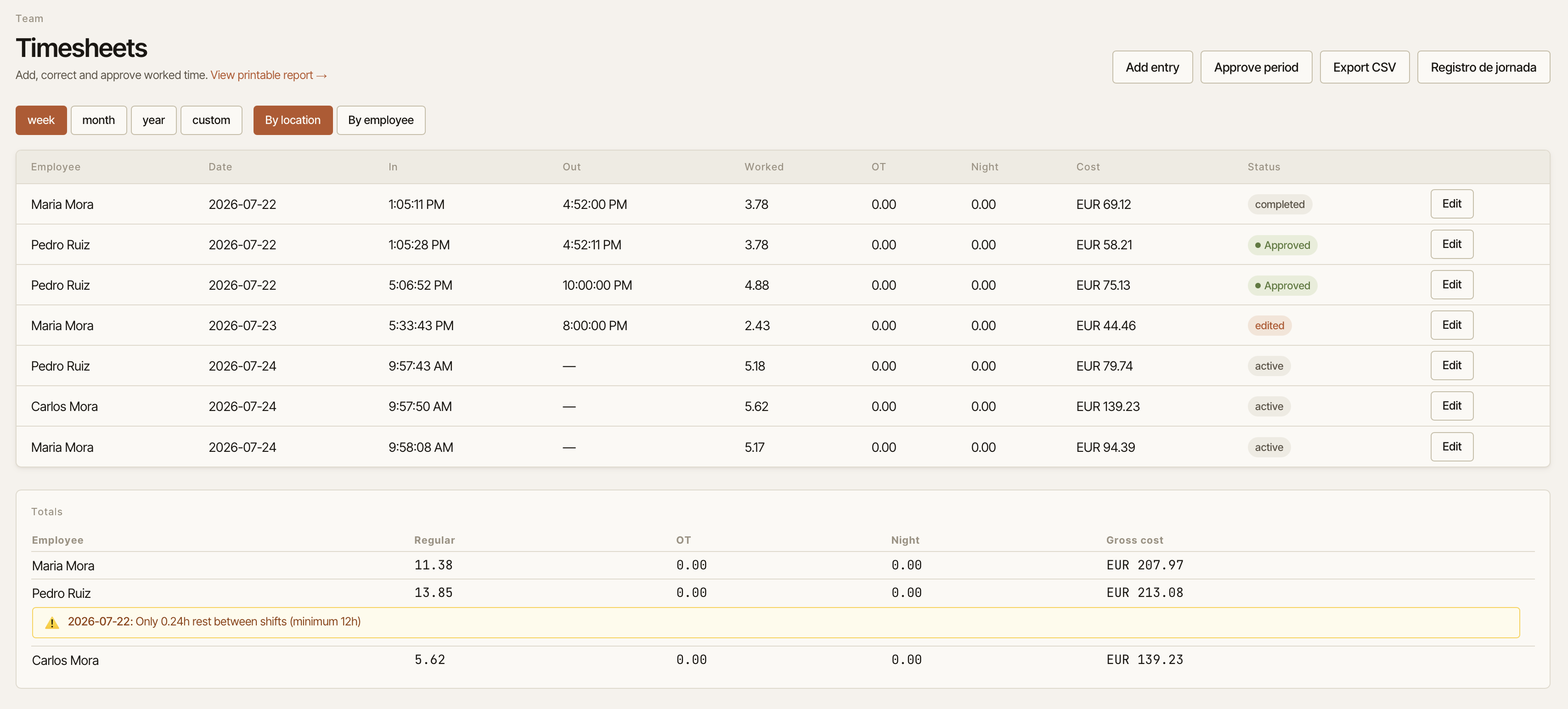
Each row is one worked session, with these columns:
- Employee, Date
- In and Out — the clock-in and clock-out times (a dash in Out means the person is still clocked in)
- Worked — hours worked, after unpaid breaks are taken out
- OT — overtime hours (hours beyond your weekly overtime threshold)
- Night — hours that fell in your night window
- Cost — an estimated gross cost for the session
- Status — Approved, or the session's state (still active, completed, or edited)
Below the table, a Totals panel sums each person's regular, overtime and night hours and their gross cost for the period. If anything trips a working-time rule (too many hours, a missing break…), an amber warning appears there too.
Choose what you're looking at
- Date range — pick week, month, year, or custom (with your own from/to dates).
- By location vs By employee — switch to By employee and pick a person to see just their timesheet. (You need to be in By employee mode to approve a period — see below.)
- The location is whichever one you're currently working in — switch it with the location picker at the top of the Back Office.
Fix a mistake
People forget to clock out, or clock in late. To correct a session, press Edit on its row. You can change the Clock in and Clock out times, and you must give a Reason (for example, "corrected forgotten clock-out"). The reason is kept as a record of the change. Editing a session re-opens it for approval, so you'll approve it again afterwards.
Add a session by hand
If a session is missing entirely, press Add entry, choose the Employee, set the Clock in (and Clock out, if it's finished), and save. You can't add a second open session for someone who's already clocked in.
Approve and lock a period
When a person's hours are correct, lock them so they're ready for payroll:
- Switch to By employee and select the person.
- Set the date range to the period you're closing.
- Press Approve period and confirm.
Their sessions show Approved. If you later edit an approved session, it re-opens for approval so nothing changes silently behind a locked period.
Export for payroll
- Export CSV downloads a per-person summary (regular, overtime and night hours, and gross cost) for the selected period.
- Registro de jornada downloads the Spanish legal working-time record, with each session's start, end and break times per employee.
There's also a View printable report → link at the top for a clean, printable version that includes a breaks column.
Planned vs actual
To compare the hours you scheduled against the hours worked, use the Actual view on the Schedule page rather than here — it lines up planned and worked hours side by side.