In diesem Dokument
Positions and working-time rules
Labor settings (under Team → Labor settings) holds two things: the positions you assign to staff and shifts, and the working-time rules that decide when Chequo flags overtime, missing breaks, and other issues on your schedule and timesheets.
Chequo fills these in with sensible defaults for your country when you first open the page. Every value depends on your collective agreement (convenio / CCNL), so adjust them to match yours.
Positions
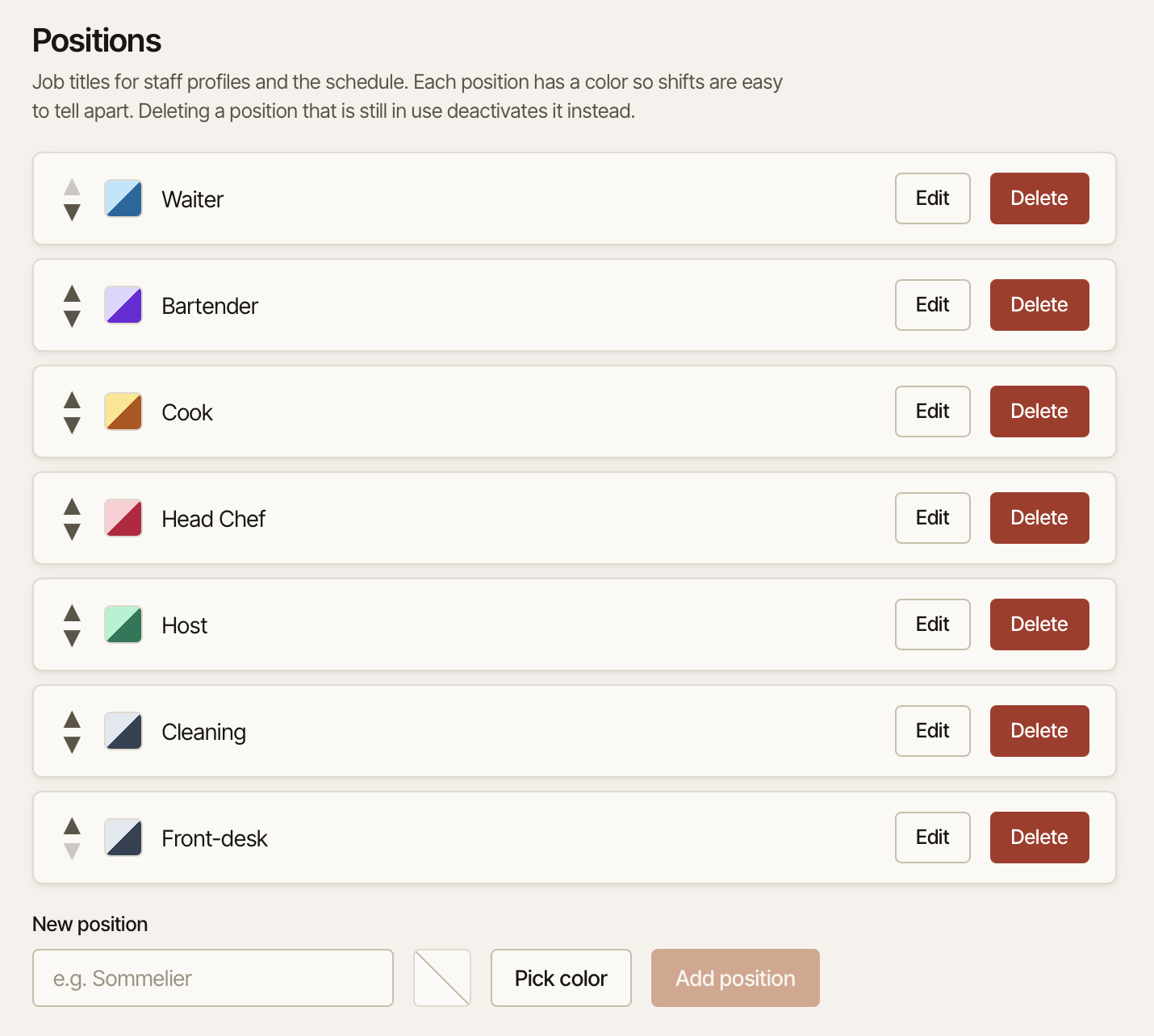
Positions are the job titles you give people — Waiter, Cook, Bartender, Host, and so on. Each position has a colour, which is what makes shifts easy to tell apart on the schedule. New locations start with a default set you can rename or replace.
Positions are used in two places: on each staff member's profile (the jobs they can work) and on each shift in the schedule.
To add a position: at the bottom of the Positions list, type a name in New position (for example "Sommelier"), press Pick color and choose one, then press Add position.
To edit one: press Edit on its row, change the name or colour, and press Save.
To reorder them: use the up and down arrows on each row. The order here is the order they appear in menus.
To remove one: press Delete. If the position isn't used anywhere, it's removed. If any staff member or shift still uses it, Chequo keeps it but marks it Inactive (so nothing breaks) — it shows a Reactivate button if you want it back later.
Position names must be unique — you'll get "A position with that name already exists" if you reuse one.
Working-time rules
These settings drive the advisory warnings you see when building a schedule and the overtime and premium calculations on timesheets. They don't block you — they warn you — so you stay in control.
The working week
- Week starts on — the day your working week begins (e.g. Monday). This sets the boundary for weekly hours and overtime.
Night hours
- Night window start / end — the hours that count as night work (e.g. 22:00 to 06:00).
- Night premium % — the extra pay for hours worked in that window. Set to 0 to turn it off.
Overtime
- Overtime threshold (weekly hours) — hours worked beyond this in a week count as overtime on timesheets.
- Overtime multiplier — the default rate for an overtime hour (e.g. 1.5×). A staff member's own multiplier, if set on their profile, takes priority.
- Max annual overtime hours — warns when someone's yearly overtime goes over this. Set to 0 to turn it off.
Breaks and rest
- Break required after (hours) and Min break (minutes) — warn when a long shift doesn't include a required break.
- Min rest between shifts (hours) — warns when someone is scheduled again too soon after their last shift.
- Min weekly rest (hours) — warns when a week doesn't include enough continuous rest.
Hour limits
- Max daily hours and Max weekly hours — warn when a shift or week goes over.
- Weekly averaging window (days) — the period over which weekly hours are averaged, if your agreement allows it.
- Max annual hours and Max complementary % — yearly and part-time limits.
For most of the numeric limits, 0 means "don't check this rule". All fields need a value before you can save (an empty box isn't the same as 0), so fill in every one.
Record retention is shown for information only — it's the number of years time records are legally kept, and it can't be changed.
Press Save at the bottom when you're done. You'll see "Labor settings saved".